Backends
You can choose among different pluggable secret storage backends. You can set the backend using the --backend flag or
the AWS_VAULT_BACKEND environment variable. Run aws-vault --help to see what your --backend flag supports.
The supported vaulting backends are:
| Internal name | Backend | How it works | Platforms |
|---|---|---|---|
keychain | macOS Keychain | Stores credentials as generic password items in the configured Keychain. Optional biometrics support can use Touch ID to unlock the aws-vault keychain. | macOS |
wincred | Windows Credential Manager | Stores credentials as generic credentials under an aws-vault target-name prefix in Windows Credential Manager. | Windows |
winhello | Windows Hello | Stores encrypted envelopes in Windows Credential Manager. The encryption key is wrapped by Windows Hello / Passport, so reads require PIN/biometrics. | Windows |
secret-service | Secret Service (GNOME Keyring, KWallet, …) | Stores credentials in a Secret Service collection over the desktop session D-Bus. The collection may be unlocked by the desktop keyring service. | Linux |
kwallet | KWallet | Stores credentials as entries in the configured KWallet folder over the KDE Wallet D-Bus service directly (rather than through the Secret Service API). | Linux |
keyctl | Linux kernel keyring | Stores credentials in the Linux kernel key retention service, optionally inside a named keyring for the configured service. | Linux |
pass | Pass | Stores JSON-encoded credential items in a pass password store, encrypted by GPG and managed through the pass command. | macOS, Linux, FreeBSD |
passage | Passage | Stores JSON-encoded credential items in a Passage store, encrypted with age and managed through the passage command. | macOS, Linux, FreeBSD |
file | Encrypted file | Stores one encrypted file per credential under AWS_VAULT_FILE_DIR (by default ~/.awsvault/keys/) using passphrase-based JWE encryption. | All platforms |
op-connect | 1Password Connect | Stores credentials as concealed fields in 1Password items through a 1Password Connect server and token. | Windows, macOS, Linux |
op | 1Password Service Accounts | Stores credentials as concealed fields in 1Password items through the 1Password SDK using a service account token. | Windows, macOS, Linux |
op-desktop | 1Password Desktop App | Stores credentials as concealed fields in 1Password items through the local 1Password desktop app integration. | Windows, macOS, Linux |
proton-pass* | Proton Pass | Stores credentials as items in a Proton Pass vault, accessed directly via Proton’s HTTPS API using a scoped Personal Access Token. See below for setup. Experimental | Windows, macOS, Linux |
Use the --backend flag or AWS_VAULT_BACKEND environment variable to specify a backend. Run aws-vault --help to see
the backends available in your build and environment.
By default, aws-vault selects the first available backend for the platform: wincred on Windows, keychain on macOS,
and secret-service on Linux when Secret Service is available. On Linux, automatic selection then falls back through
kwallet, keyctl, pass, passage, and file. The 1Password and Proton Pass backends are opt-in and are listed
after file, so choose them explicitly with --backend or AWS_VAULT_BACKEND.
Keychain
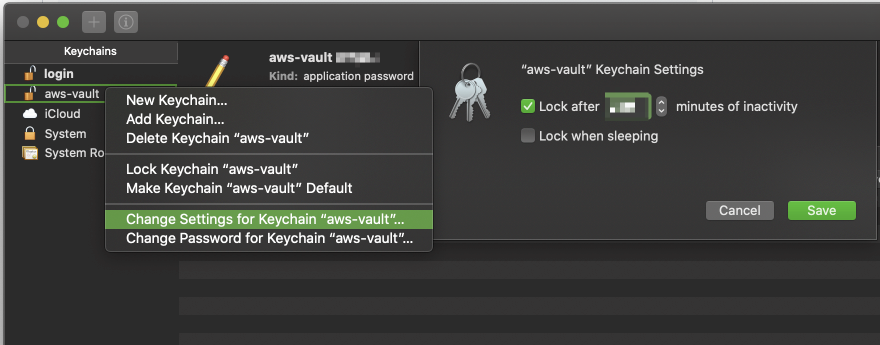
If you’re looking to configure the amount of time between having to enter your Keychain password for each usage of a particular profile, you can do so through Keychain:
- Open “Keychain Access”
- Open the aws-vault keychain. If you do not have “aws-vault” in the sidebar of the Keychain app,
then you can do “File -> Add Keychain” and select the
aws-vault.keychain-db. This is typically created inUsers/{USER}/Library/Keychains. - Right click on aws-vault keychain, and select “Change Settings for Keychain ‘aws-vault”
- Update “Lock after X minutes of inactivity” to your desired value.
- Hit save.
Proton Pass
⚠️ Experimental. The
proton-passbackend talks to an undocumented, internal Proton API and depends on a credential model that may change. Review the Terms of Service note below before using it for anything unattended.
The proton-pass backend stores each profile’s credentials as an item in a Proton Pass vault,
reached directly over Proton’s HTTPS API. It does not shell out to the Proton Pass CLI at runtime — you only use the CLI
once, to mint and scope the access token.
aws-vault authenticates with a Proton Pass Personal Access Token (PAT), a scoped, Proton-issued automation
credential of the form pst_<token>::<key>. The whole string is the credential: the pst_<token> half is exchanged for
a session, and the ::<key> half is the key that decrypts the vault.
1. Mint and scope a PAT
Install the Proton Pass CLI and log in, then create a token and grant it access. A dedicated vault keeps aws-vault’s items isolated:
# Optional: a dedicated vault for aws-vault items
pass-cli vault create --name aws-vault

# Mint the PAT — the pst_…::… value is printed ONCE; store it now
# --expiration is one of: 1d, 1w, 1m, 3m, 6m, 1y
pass-cli pat create --name aws-vault --expiration 3m

# Find the token's <ID>
pass-cli pat list

# Grant access (see the grant-scope table below for which role/scope you need)
pass-cli pat access grant --pat-id <ID> --vault-name aws-vault --role editor

# ...or, for least privilege, scope to one already-existing profile item.
# The item title is "<prefix>/<profile>" (default prefix "aws-vault"):
pass-cli pat access grant --pat-id <ID> --vault-name aws-vault \
  --item-title aws-vault/my-profile --role viewer
The grant determines what aws-vault can do, and Proton’s role model (viewer < editor < manager) governs the rest:
| Command | Operation | Grant that works |
|---|---|---|
aws-vault add | create item | vault-level editor — the PAT must be a member of the vault; a per-item grant cannot create new items |
aws-vault exec, list | read | per-item grant (read-only viewer is enough) |
aws-vault remove | delete | per-item grant with a writable role (editor) |
The add-needs-a-vault-level-grant constraint is the one that bites in practice; the read/update/delete rows follow
Proton’s role model. The simplest setup is a single vault-level editor grant, which covers every command. Use a
per-item token only when the profile already exists and you want least privilege (for example a read-only viewer token
on a CI runner that only runs exec).
2. Find the Share ID
A grant creates a recipient share for the PAT with its own Share ID. That ID — not the vault owner’s — is what aws-vault needs:
pass-cli pat access list-access --pat-id <ID>3. Configure aws-vault
export PROTON_PASS_PERSONAL_ACCESS_TOKEN='pst_xxxx::KEY'

aws-vault --backend=proton-pass \
  --proton-pass-share-id=<SHARE_ID> \
  add my-profile
Set AWS_VAULT_BACKEND=proton-pass and AWS_VAULT_PROTON_PASS_SHARE_ID=<SHARE_ID> to avoid repeating the flags. If
PROTON_PASS_PERSONAL_ACCESS_TOKEN is unset, aws-vault prompts for the token. The token is never accepted as a
command-line flag, which would leak it into the process list and shell history.
The backend also reads the Proton Pass CLI’s own PROTON_PASS_SHARE_ID and PROTON_PASS_API_BASE variables as a
fallback, so an existing CLI environment works unchanged. The aws-vault-specific AWS_VAULT_PROTON_PASS_* variables
(and their flags) take precedence when both are set.
Session caching and rate limits
The first command exchanges your PAT for a Proton session and caches that session in your OS keychain (macOS
Keychain, Secret Service, KWallet, or Windows Credential Manager), under a dedicated aws-vault-proton-pass-session
entry. Subsequent commands reuse it, so a normal add → list → exec sequence performs a single login. The cache
entry is keyed to your token, so rotating the PAT invalidates it automatically; a session that Proton has expired or
revoked is detected and the PAT re-exchanged on the next call.
This caching is what keeps the backend under Proton’s login rate limit. Without it, every command re-runs the full
exchange, and a few commands in quick succession trip HTTP 429 / code 2028 "Too many recent logins". On a host with
no OS keychain available (for example a headless Linux box with no Secret Service), the session cannot be cached and
every operation re-exchanges the PAT — space your commands out, or expect the occasional rate-limit error.
--proton-pass-timeout (default 30s, env AWS_VAULT_PROTON_PASS_TIMEOUT) bounds each operation, including the
several HTTP calls a single command makes.
Errors are reported plainly: a rate-limit response tells you to wait and retry; a rejected PAT tells you to mint or re-grant a token; and a demand for human verification (CAPTCHA / 2FA), which this client cannot satisfy, asks you to re-authenticate with the Proton Pass app or CLI to clear it.
Terms of Service
Proton’s Terms of Service (Section 2, “Authorized use of the Services”) prohibit
accessing the Services “through automated means (including but not limited to bots, scripts, or similar technologies)”.
Interactive use — running aws-vault exec yourself, with you present — reads as an unofficial client acting on your
behalf. Unattended or CI use is the gray area for that clause and is at your own risk. A PAT is the most clearly
authorized automation credential Proton offers, but it does not exempt you from the automated-access clause. This is an
engineering reading, not legal advice; get sign-off before relying on it for unattended access.